




 Shop all
What you can make
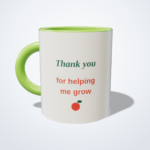
An 11oz ceramic mug with your own design: one picture all the way round, or a different design on each side. Choose a coloured inside, rim and handle, and watch it turn in 3D as you design.
Before you start
- All you need is a web browser, on a computer or a phone. There is nothing to install.
- You do not need an account to design or to order. You only need one to save a design and come back to it later.
- Everything you add can be moved, changed or deleted until you approve your proof. Nothing is printed before that.
Starting your design
On the product page, press Start designing. You are asked How would you like to start?
- Pick a ready-made design, if there are any for this product, and change it to suit you.
- Design it myself opens an empty mug.
- Our designers draw it for you: tell us what you want, attach your logo or examples if you have them, and we draw it. There is a design fee per design, shown on that card before you order, as its own line in your basket.
- Email us your artwork later: order now and send us your finished file afterwards. Its card has a template for your exact size, and your order email says where to send the file.
On one of our ready-made mug designs, the button reads Personalise this design instead, and opens that design for you to change.
Finding your way around
On a computer, your mug is in the middle. The list of pages runs down the side: Design, Text and the rest, ending with Mug. The price is at the bottom of the side panel and updates as you go. Along the top are Save, Help (this guide, in a new tab), Menu, and the undo and redo arrows.
On a phone, your mug fills the screen.
- The round + button adds things: Text, Picture, Graphics, Shape, Background and Templates.
- The price at the top opens Mug.
- The bar at the bottom has Menu, Undo, Redo, Save and Finalise. Menu → Help: how to use this designer opens this guide.
- When something is selected, a button above the canvas, such as Edit text, opens its settings.
Your design: the list of everything on it
Design shows Your design: every item on your mug, one per line. When it is empty, big buttons offer the ways to start.
- Click a line, or the item itself, to select it.
- The eye hides an item or shows it again. The arrows move it in front of, or behind, the others. The bin deletes it.
- Below the list, Add more gives you the same buttons again.
Adding text
- Open Text and type in the box that says Type your text.
- Choose Straight text or Curved text, a font, bold or italic, and the alignment.
- The sliders set the Size, the Curve (a dome, a cup, or flat), the Spacing between letters and the Line spacing, and Outline thickness for a line around the letters.
- Pick the Text colour and the Line colour.
- Press Add your text.
To change text later, click it on your mug. Its settings open again and every change shows straight away.
Pictures and QR codes
Upload adds a photo or picture from your computer or phone. Photos of people and pets look wonderful on a mug.
QR Code: type a web address in Link or text, choose the Color and Background, check the preview, and press + Add QR code.
Tip: scan the QR code with your phone before you order, to check it opens the right page. A QR code is never smaller than 10 mm, so phones can read it.
Graphics
Graphics is our library of ready-drawn pictures. Search it, or pick a category, and click one to add it. It prints in full colour.
Click a graphic on your mug to change it: Swap it for another, set its size and angle, flip it, or Duplicate it.
Shapes
Shapes draws a Rectangle, an Ellipse or a Polygon (choose how many Sides), with rounded Corners if you like.
Give it a Fill colour or a texture, make it see-through with Transparency (even all over, or fading in a line or a circle), and add an outline with Outline colour and Thickness. Then press Add shape.
Background
Background is one of the buttons on Design (and in the + menu on a phone). Choose a flat Background colour, or a texture or pattern and its Texture size. No texture goes back to a plain colour. Press Done.
Mug: layout, colour and quantity
Mug is this product’s own page (on a phone, tap the price at the top).
- Layout:
- Full wrap-around: one design all the way round, from one side of the handle to the other.
- Two designs, front and back: a separate design in each window, facing out on either side of the handle.
- Same design front and back: design one side, in the left window, and we print it on the other side too.
- Mug colour: White, Pink, Green, Blue or Black. The inside, rim and handle take this colour; your design always prints on the white outside.
- Quantity: from one mug.
Moving, resizing and layering
- Move: drag the item.
- Resize: drag a corner handle. Turn: drag the round handle.
- Centre: on a computer, the bar under your mug has Centre ↕, Centre ↔ and Centre on mug for the selected item.
- In front or behind: use the arrows on Design.
- Undo and redo: the curved arrows at the top (on a computer, Ctrl+Z and Ctrl+Shift+Z work too).
- Fine work: zoom in with the + and − buttons, and use Pan to move around.
The edge warning
The print area wraps round the mug from one side of the handle to the other. Keep words and faces at least 5 mm from the top and bottom, where the mug curves towards the rim and the base.
With two designs, front and back, the strip in the middle marked Not printed is left white, and with same design front and back only the left window prints. If anything strays outside the window, the designer says so under Your design, and Fix it moves it back in. The 3D mug shows exactly what will print.
The designer checks for you. When something is too close, the side panel warns you, for example: 1 item may be trimmed — check Your design. On Design the item is marked, with a Fix it button that pulls it back into the safe area. With more than one, Fix all does them all. You can also just make the item a little smaller.
Checking it before you order
Preview shows your mug full-screen, as it will be printed. The 3D mug beside your design shows it on a real mug as you work: Front, Back and Spin. Hide it or show it again with 3D mug. Neither changes anything.
Saving and coming back later
Save keeps your design under a name you choose. You need an account for this; if you are not signed in, the designer offers Register or log in, and it only takes a minute.
To open it again later: Menu → Open a saved design.
Approving your proof and ordering
- Press Finalise design (Finalise on a phone).
- Review your proof shows exactly what we will print, with the size, quantity and price. Tick Show cut line to see where it will be cut.
- Read every word. Spelling, layout and pictures are your responsibility once you approve.
- Tick the box to say you have read and agree, then press Finalize & Add to Cart.
Approving is final. We print exactly what the proof shows, so a mistake in an approved proof cannot be refunded. If anything is wrong, go back and fix it first.
At checkout you tick once more to confirm you have checked the spelling and layout, then pay securely through Payfast.
After you order
- We start making your order once you have approved your proof and paid. How long it takes, and how it reaches you explains production times, Rush production, courier delivery and lockers.
- Collecting from our Wilro Park collection point is free. We email you when your order is ready to collect.
- Want to send us your own finished artwork instead? Choose Email us your artwork later where it is offered, or send us an enquiry.